Opening Paper Models with Pepakura Viewer
 17
17
Computer software lets designers create remarkably detailed paper models of people, game characters, film and cartoon figures, and almost anything else. Many of these models are distributed as PDO files. How do you open and print one? This guide introduces the basics.
Pepakura Viewer opens PDO files so you can inspect and print paper models. The free program has two main views: a 3D model (1) and its unfolded parts (2). The main toolbar sits above them (3). A download link is provided at the end of the article.
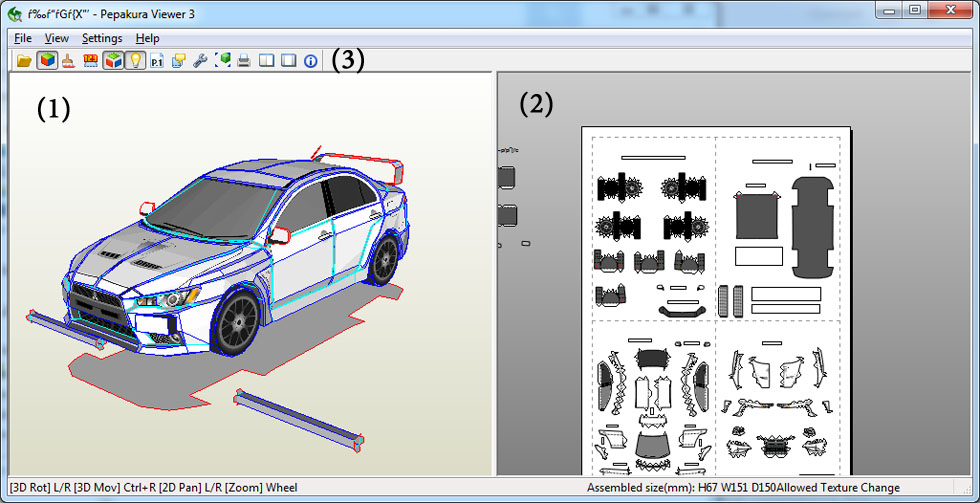
Using the 3D Model View
- Rotate the model by holding down the left or right mouse button and dragging.
- Move the model by holding both mouse buttons and dragging.
- Select several parts while holding Shift or Ctrl.
- Zoom in or out with the mouse wheel.
- Select a part to highlight it in the unfolded view.
- Double-click a section of a part to highlight the matching area in the unfolded view.
- Face colours identify folds: blue indicates a raised fold, light blue a recessed fold, and red an unspecified type.
- Double-sided parts are highlighted in grey.
Using the Unfolded Parts View
- Hover over a part's edge to see a red line indicating which other edge it joins.
- Select a part to highlight it in the 3D view.
- Double-click a section to highlight the corresponding area in the 3D view.
- Zoom in or out with the mouse wheel.
- Fold lines have different styles: dashed for a raised or outward fold, dash-dot for a recessed or inward fold, and solid where the type is unspecified. Check the 3D view if unsure.
- Hold Shift or Ctrl to select several parts.
The Main Toolbar
- Open File. Opens a PDO file.
- Set Materials to Faces. Shows or hides textures. With textures hidden, the model appears black and white.
- Color Flaps with Neighboring Faces. Colours glue tabs to match adjacent faces, reducing visible white strips along seams.
- Show Edge ID. Displays edge or tab numbers on the unfolded parts.
- Emphasize Open Edges. Adds separation between parts.
- Turn on Light. Adds light and shadow to the textures.
- Show Page Number. Displays page numbers in the unfolded view.
- Show Part Name. Displays part names or numbers.
- Display Setting. Adjusts the view, including the angle, spacing and textures.
- Print. Opens the printing function.
- Split Window. Shows both the 3D model and unfolded parts.
- Single Window. Shows only the unfolded parts.
Important Settings
-
Pay particular attention to tab colouring and the print settings.
-
In Settings -> Other Settings, open General Settings to adjust how tabs are coloured. You can colour an entire tab to match the adjacent face or colour only part of it and specify the width.
-
In Settings -> Print Settings, check Line Thickness and Transparency. The first controls fold-line width and the second its transparency.
Conclusion
You can now open a PDO paper model, inspect how its parts fit together, print its sheets and begin cutting and assembling it.
Enjoy building!


